
NOIR — Cinematic Portfolio Website Template
Cinematic React portfolio template with immersive GSAP animations, Screening and Archive modes, a built-in customization editor, and static website export.
Type
Tech stack
Connected services
Documentation
Basic
A README with setup and run steps.
Maintenance
Occasional
Occasional fixes, but no active roadmap.
Description
Version 1.0.0
Welcome to NOIR
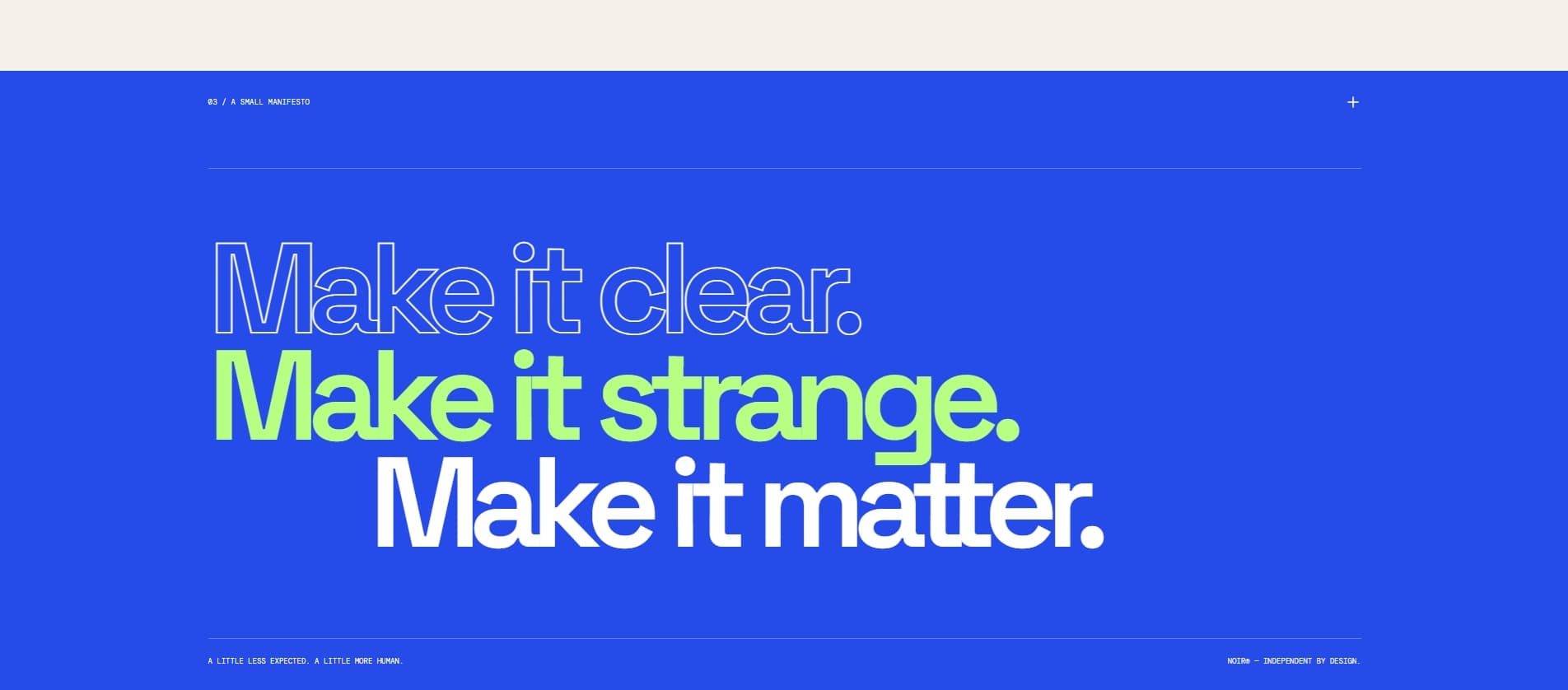
NOIR is a cinematic portfolio website template for photographers, designers, artists, filmmakers, creative studios, and independent professionals.
It includes two portfolio experiences, Screening and Archive, smooth GSAP animations, responsive layouts, and a visual customization editor.
You can personalize your portfolio without editing React or JavaScript code.
Before you begin: NOIR is a React template with a local visual editor, not an online website builder. You will need to install Node.js and enter a few commands to start the editor.
This guide explains the process step by step, even if you have never used a terminal before.
1. What Is Included?
Your NOIR package contains:
- React and Vite source code
- Screening and Archive portfolio modes
- GSAP animations and transitions
- A visual Customize editor
- Editable branding, text, colors, and projects
- Image upload functionality
- Configuration backup and restore
- Static website export
- Responsive layouts
- This installation and usage guide
The public website you export will not contain the Customize editor.
2. What Do You Need?
Before starting, make sure you have:
- A Windows or macOS computer
- An internet connection for installation
- A modern web browser
- Node.js and npm
What is Node.js?
Node.js is software that allows the NOIR editor to run on your computer.
You do not need to learn Node.js or programming to customize your portfolio.
What is npm?
npm is a tool included with Node.js. It downloads the software components required by NOIR.
What is a terminal?
A terminal is an application where you type commands.
On Windows, you can use PowerShell.
On macOS, you can use Terminal.
You only need a few commands to install and start NOIR.
3. Install Node.js
- Open your browser.
- Visit https://nodejs.org/
- Download a Node.js LTS version compatible with Vite 8.
- Open the downloaded installer.
- Follow the installation instructions.
- Finish the installation.
After installing Node.js, close and reopen any terminal windows.
Check that Node.js works
On Windows:
- Open the Start menu.
- Search for PowerShell.
- Open Windows PowerShell.
On macOS:
- Open Finder.
- Go to Applications.
- Open Utilities.
- Launch Terminal.
Enter:
node -v
Press Enter.
You should see a version number.
Now enter:
npm -v
Press Enter.
You should see another version number.
If either command is not recognized, restart your terminal and check your Node.js installation.
4. Extract Your NOIR Package
After purchasing NOIR, download the ZIP archive.
Windows
- Locate the downloaded ZIP file.
- Right-click the file.
- Select Extract All.
- Choose a destination folder.
- Click Extract.
macOS
- Locate the downloaded ZIP file in Finder.
- Double-click it.
- Open the extracted folder.
Find the correct folder
Open the extracted files and look for:
package.json
The folder containing this file is your NOIR project directory.
You must extract the ZIP before using NOIR.
Do not try to run the project directly from inside the compressed archive.
5. Open a Terminal in the NOIR Folder
This is an important step.
The terminal must be opened inside the folder containing package.json.
Windows: Open PowerShell
-
Open the extracted NOIR project folder in File Explorer.
-
Confirm that you can see package.json.
-
Click the address bar at the top of File Explorer.
-
Delete the text currently shown in the address bar.
-
Type:
powershell
-
Press Enter.
A PowerShell window will open.
You are now ready to enter the NOIR installation commands.
macOS: Open Terminal
-
Open Terminal from Applications > Utilities.
-
Type the following command followed by a space:
cd
-
Drag the extracted NOIR project folder from Finder into the Terminal window.
-
Press Enter.
The terminal should now be inside the project directory.
6. Install NOIR
In PowerShell or Terminal, type:
npm install
Press Enter.
This command downloads the dependencies required by NOIR.
The installation may take a few minutes, depending on your internet connection.
Wait until the command finishes.
You normally only need to perform this installation once.
Do not close the terminal while the installation is running.
7. Start NOIR
Once installation is complete, type:
npm run dev
Press Enter.
After a short wait, Vite should display a local website address.
For example:
http://localhost:5173/
Your address may use a different port.
This is normal.
Keep the terminal window open. Closing it will stop the local NOIR website.
8. Open the Customize Editor
This is where you personalize your portfolio.
Step-by-step instructions
- Make sure
npm run devis running. - Open Chrome, Edge, Firefox, Safari, or another modern browser.
- Look at the local address displayed in the terminal.
- Add
/customizeto the end of that address. - Enter the complete address in your browser.
- Press Enter.
For example, if the terminal displays:
http://localhost:5173/
Open:
http://localhost:5173/customize
Important: If your terminal displays a different port, use that port instead.
For example, if your local address is:
http://localhost:5174/
Your editor address will be:
http://localhost:5174/customize
The Customize editor should now appear.
You do not need to modify any React files to use the supported customization options.
What can you customize?
You can change:
- Brand name and subtitle
- Colors and visual appearance
- Hero content
- About section
- Manifesto content
- Contact information
- Projects and project images
- Display preferences
Use the editor controls to make your changes.
The editor includes a preview to help you review your portfolio.
9. How Your Changes Are Saved
NOIR saves customization data locally in your browser.
This means your changes are associated with the browser and local website address you use.
For example, settings saved under localhost:5173 may not automatically appear when using localhost:5174.
Your changes may also be lost if you clear the relevant browser storage.
Always create a configuration backup before clearing browser data, changing computers, or making major changes.
10. Create a Configuration Backup
To protect your customization settings:
- Open the Customize editor.
- Find the Backup & Transfer section.
- Choose the option to export your configuration backup.
- Save the downloaded file somewhere safe.
You can later use the corresponding import option to restore your saved settings.
A configuration backup is not the same as an exported public website.
Keep both files if you want to preserve your work and publish your portfolio.
11. Export Your Finished Website
Once you have finished customizing NOIR:
- Open the Customize editor.
- Review your branding, content, projects, images, and contact details.
- Find the Backup & Transfer section.
- Click EXPORT WEBSITE.
- Wait for the export process to complete.
- Download the generated ZIP file.
- Save the file somewhere safe.
This ZIP contains your finished public website.
It includes compiled website assets, configuration, and supported uploaded images.
The exported public website does not include the Customize editor.
You do not need to run a separate production build to use the EXPORT WEBSITE feature.
12. Publish Your Website Online
Your exported website is a static website.
This means it can be published using a compatible static hosting provider.
Examples include:
- Vercel: https://vercel.com/
- Netlify: https://www.netlify.com/
You may need to create a free or paid hosting account, depending on the provider and your usage.
General publishing instructions
- Locate the ZIP generated by EXPORT WEBSITE.
- Extract that ZIP into a folder.
- Open your chosen static hosting provider.
- Follow its instructions for uploading an existing static website.
- Upload the contents of the exported website folder.
- Make sure index.html is located at the published website root.
- Complete the provider's deployment process.
- Open the public website address provided by the hosting service.
Hosting providers may change their interfaces and deployment requirements. Follow their current documentation if necessary.
Important exported files
Your exported website may contain:
index.html
site-config.json
assets/
published-assets/
The published-assets folder is included when applicable.
Keep the generated folder structure intact.
Do not rename or remove compiled files.
Important: Do not double-click index.html
The exported website is intended to run through HTTP or HTTPS.
Opening index.html directly with the file:// protocol may prevent configuration and other resources from loading.
Upload the website to a compatible hosting provider instead.
13. Check Your Published Website
After publishing, open the public URL and verify:
- The homepage loads correctly
- Images appear
- Screening Mode works
- Archive Mode works
- Navigation links work
- Contact information is correct
- The layout works on mobile
- Animations behave correctly
The public website should not display the Customize editor.
If something is missing, check that all exported files and folders were uploaded.
14. How to Edit Your Portfolio Later
You can return to the Customize editor whenever you want.
Windows
-
Open your original extracted NOIR project folder.
-
Click the File Explorer address bar.
-
Type powershell and press Enter.
-
Run:
npm run dev
-
Open the local Customize address in your browser.
For example:
http://localhost:5173/customize
macOS
-
Open Terminal.
-
Navigate to your original NOIR project folder using cd.
-
Run:
npm run dev
-
Open the local Customize address in your browser.
You normally do not need to repeat npm install.
Publishing your changes
After editing your portfolio:
- Create a new configuration backup.
- Use EXPORT WEBSITE again.
- Download the new website ZIP.
- Replace the previously published website files using your hosting provider's deployment process.
- Verify the updated public website.
Changes made in your local editor do not automatically update your published website.
15. Troubleshooting
Node.js is not recognized
If you see an error saying that node is not recognized:
- Check that Node.js is installed.
- Restart PowerShell or Terminal.
- Try running node -v again.
- Reinstall a compatible Node.js version if necessary.
npm is not recognized
npm is normally installed with Node.js.
Check your Node.js installation and restart the terminal.
PowerShell blocks npm commands
Some Windows systems may prevent PowerShell from running npm scripts.
If this happens, try opening Command Prompt in the project folder instead.
You can type cmd in the File Explorer address bar and press Enter.
Then run:
npm install
or:
npm run dev
You do not need to disable Windows security protections to use NOIR.
npm install fails
Check:
- Your internet connection
- Your Node.js version
- That the terminal is inside the folder containing package.json
Read the terminal error message for more information.
localhost:5173 does not work
The editor may be using a different port.
Check the address displayed after running npm run dev.
Use that exact address and add /customize.
Customize does not open
Make sure:
- npm run dev is still running
- You entered /customize correctly
- You are using the local address, not the public demo website
The public demo does not include the editor.
My changes disappeared
Make sure you are using the same browser and local address.
If you have a configuration backup, restore it through Backup & Transfer.
My images are missing
Check that your uploads completed successfully.
Some sample images use external URLs and require an internet connection.
For published websites, verify that all exported assets were uploaded.
The exported website does not work locally
Do not open the exported index.html directly using file://.
The exported website must be served through HTTP or HTTPS.
My published website does not update
Export your website again after making changes.
Then upload the newly exported files using your hosting provider's deployment process.
16. Advanced: Production Build
This section is intended for developers.
To compile the editor project for production, run:
npm run build
The compiled output is placed in the dist directory.
This command is not required for normal customization or for the built-in EXPORT WEBSITE feature.
17. Technology Stack
NOIR is built with:
- React
- Vite
- JavaScript
- CSS
- GSAP
- Lucide React
- JSZip
- IndexedDB
18. Important Information
- NOIR is a React website template with a local customization editor.
- Node.js and npm are required to start the editor.
- A few terminal commands are necessary for the initial setup.
- NOIR is not a fully online, no-installation website builder.
- Supported content and appearance settings can be edited without changing React code.
- Keep configuration backups in a safe location.
- Replace sample content before publishing.
- Default sample images may use external URLs.
- The exported website is separate from the local editor.
- Hosting services may have their own requirements, terms, and pricing.
19. Support and Updates
For product support and update information, refer to the seller's listing on Zero to Hundred.
Thank you for choosing NOIR Portfolio.
Domains
Seller

Reviews
No reviews yet.